
On a dedicated server your factory keeps running when the host's PC is off, and everyone in the group can join whenever they like. This guide walks through creating a server at Game Hosting, setting access and game rules, joining with your friends and making a backup at the end.
As of 16 October 2026. The screenshots show the panel in English, and the guide names the buttons as they appear there. For prices, see the current order summary: the amounts in the screenshots were valid only on the day they were taken.
Before you start
- PC only: you need Satisfactory on PC through Steam or Epic. Steam and Epic players can play together on one server.
- No consoles: PlayStation 5 and Xbox cannot join a dedicated Satisfactory server. This also applies to crossplay since update 1.2.5.0: mixed sessions with console players are hosted by a player.
- Example values: the IP address, port and server name in the screenshots belong to a test server that has since been removed. Always use the details of your own server. Passwords are hidden in every screenshot.
Using the server together with SatisfactoryBase
The server holds your save. Planning happens in SatisfactoryBase: create a shared world under Worlds and invite your friends under Members as editors or viewers. You all see the same factories, map markers and transport routes, and you can work on one factory in the planner at the same time. If you have a save as a .sav file, you can link it to the world; name, seed and unlocked recipes are then read from the save.
1. Choose Satisfactory
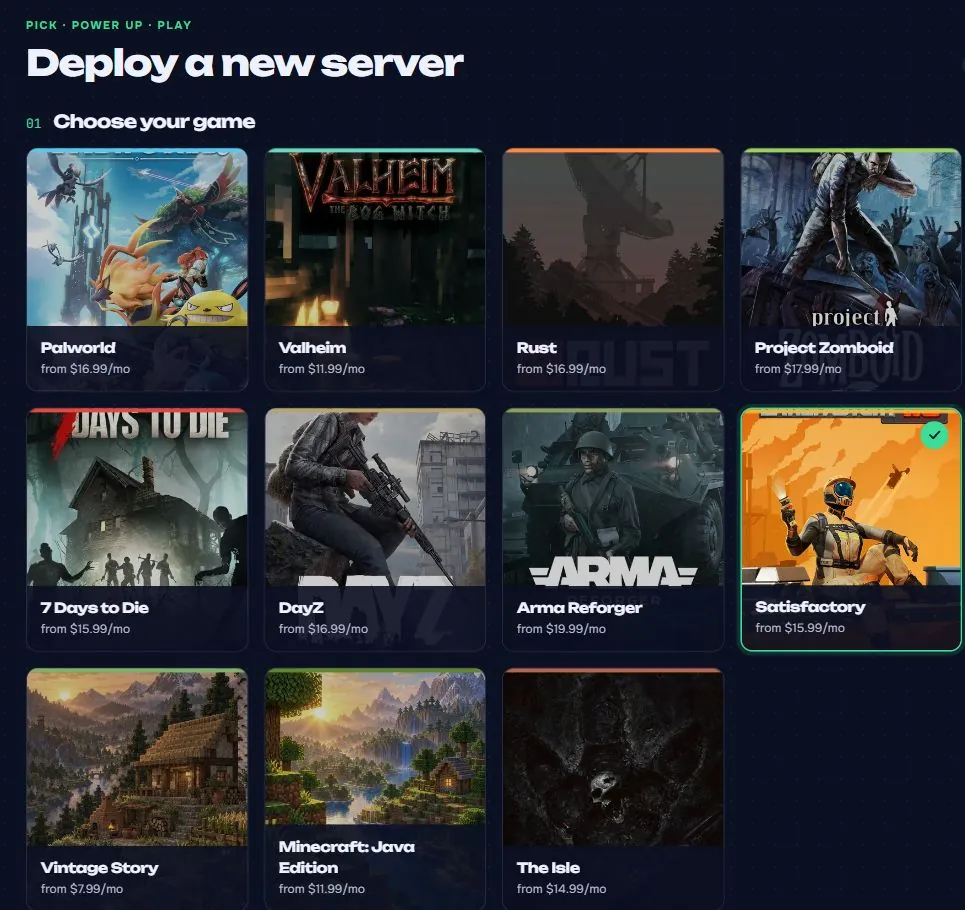
Open Game Hosting and sign in or create an account. In the panel, choose New server and then Satisfactory. The green frame marks the selected game.
2. Pick a plan and a server name
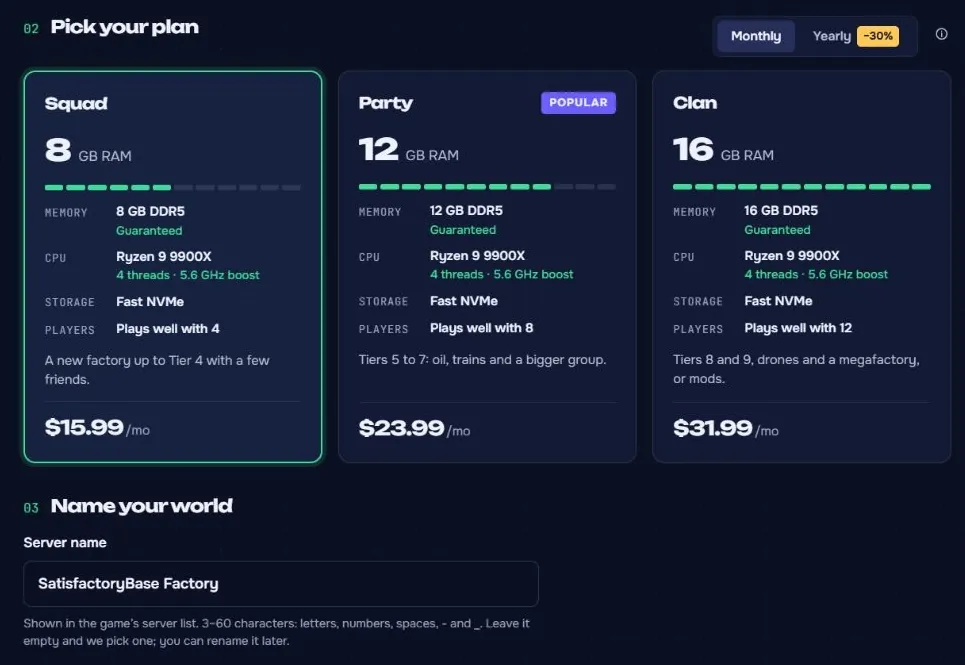
Choose Squad, Party or Clan depending on the size of your factory. The plans differ in memory. The player numbers on the cards are recommendations; you set the actual limit later under Max players.
Choose Monthly or Yearly billing. Enter a Server name, for example "SatisfactoryBase Factory". Then check game, plan, billing period, location and price in the order summary.
For a paid server, choose Buy now and then Continue to secure checkout. Payment runs through Stripe, and the server is set up automatically afterwards. The plan renews until you cancel it.
If you are offered a Free 24-hour trial, you can test the server for 24 hours without a card instead. The trial starts once the server is ready, and it never turns into a paid subscription unless you decide so.
3. Wait for the installation and first start
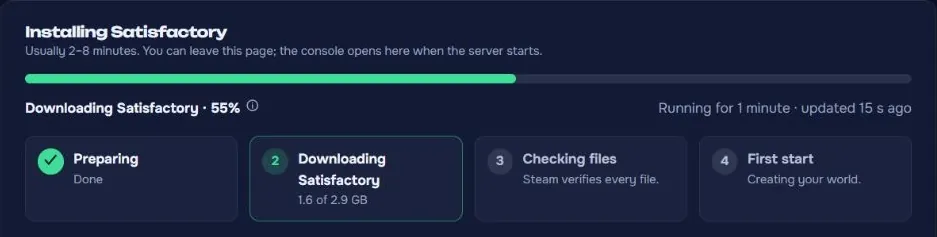
After creation the panel shows Installing. It downloads the server files, checks them and starts the first world. The panel usually estimates 2 to 8 minutes, but it can take longer. The status updates by itself.
Once Online appears, check the address and the live values under Overview. Join address holds the connection to your server. Players, Tier and Tick rate come straight from the game.
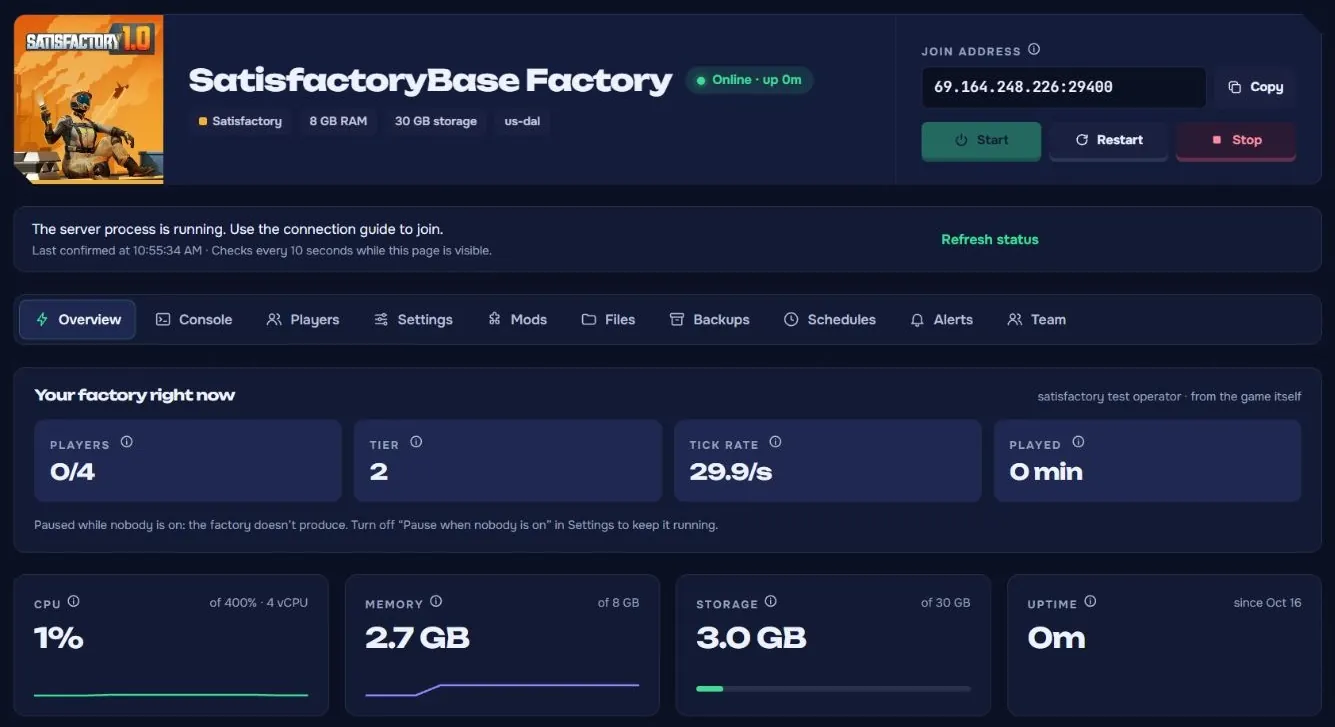
On the first start, server management is already protected with your admin password. A new factory starts in Grass Fields. You find the admin password under Settings. For a different start area, use Server Manager and Create Game in the game later; the start locations guide compares them.
If the start hangs, open Console and read the last message. Do not start several installations one after another.
4. Set access and player limit
Open Settings, then General. Server name changes the name. Join password is the password your friends need to join. Leave it empty and anyone with the address can join.
The separate Admin password gives access to server management in the game, such as saves and new worlds. Give it only to people who help run the server. The eye icon shows a password.
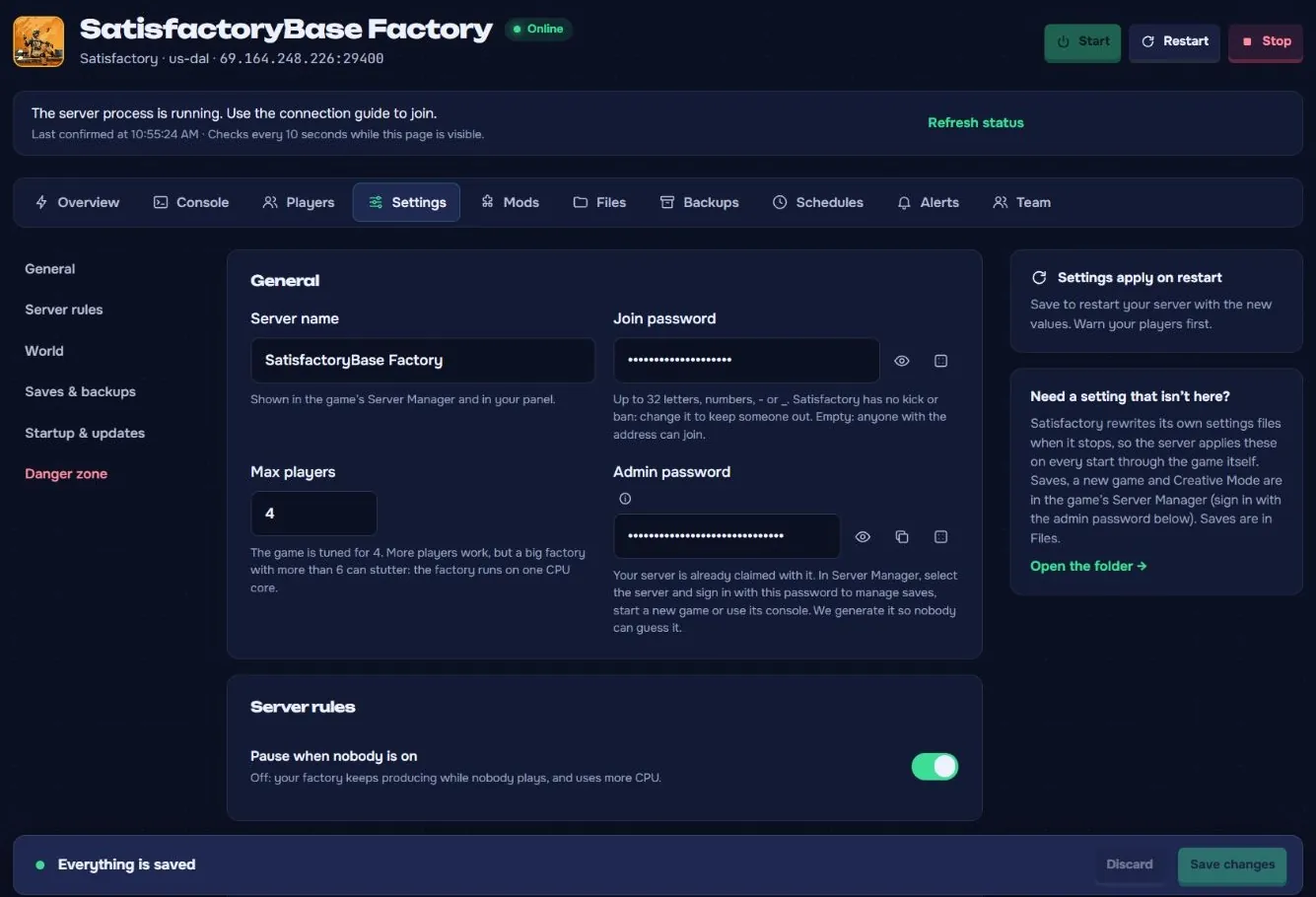
Max players caps the number of players. Satisfactory is designed for four players; bigger groups and large factories put more load on the server.
Under Server rules, Pause when nobody is on decides whether the factory pauses while nobody plays. Turn it off if production should continue without players.
Click Save changes. A running server restarts to apply the changes, so let your friends know first and wait for Online again. On a stopped server, the changes apply at the next start.
5. Manage saves and updates
Under Settings and Saves & backups, Autosave every sets the interval between autosaves in minutes, and Autosaves kept how many are kept. The screenshot shows five minutes and ten saves.
Save when a player leaves saves whenever someone leaves. The server also saves before every regular stop or restart. More frequent saves limit how much progress you can lose, but the game may stutter briefly while saving.
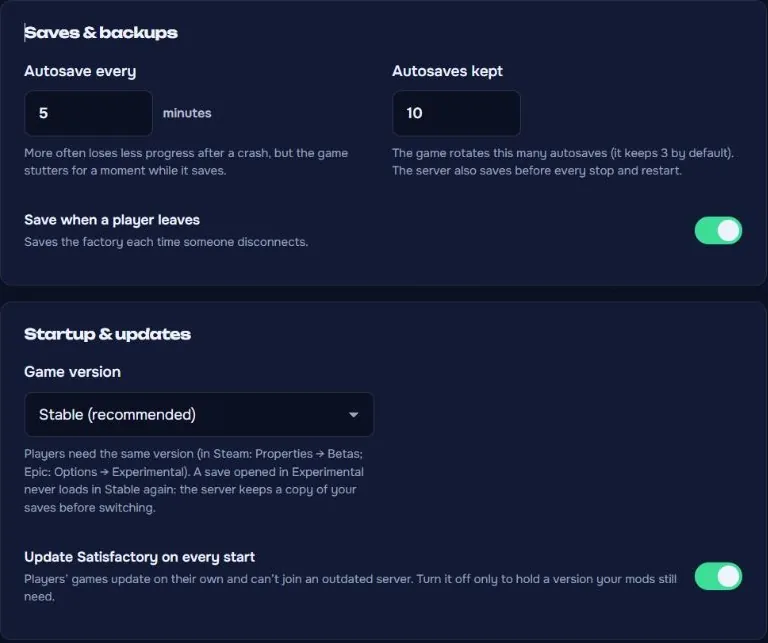
Under Startup & updates, Game version switches between Stable and Experimental. Stable is the better choice to start with. Everyone must use the same branch.
Update Satisfactory on every start updates the game on every start. A save that has been opened in Experimental cannot be loaded in Stable afterwards, so make a backup before switching. Save changes stores the choice; a running server restarts here as well.
6. Connect to the server
Wait for Online in the panel. You need the IP address, port and join password from your own panel.
- Start Satisfactory and open the Server Manager. Choose Add Server.
- Enter IP address and port in their separate fields and confirm.
- The first time, the game asks about the server's certificate. Accept it for your server.
- Select your server and Join Game. Enter the join password if the game asks for it.
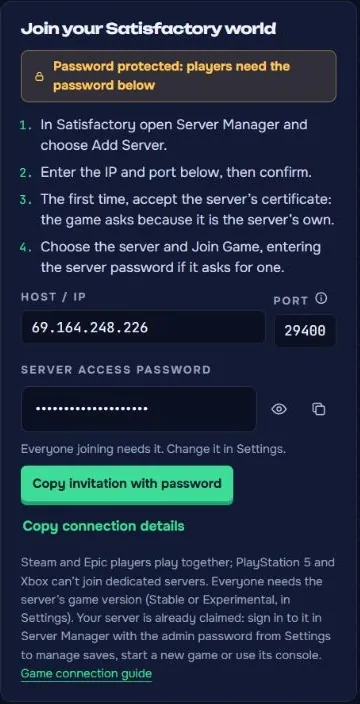
For management tasks, sign in to the Server Manager with the admin password from Settings. Your friends do not need it to join.
Can't connect? First check the Online status, IP and port. Then compare Stable or Experimental and the game's update state. If access is refused, the join password is usually wrong. If the server fails to start, read the last message under Console.
7. Make a backup
Open Backups. Enter a clear Backup name, such as "Before configuration", and choose Back up now. Wait until the backup shows Ready in the list. Its size depends on your factory.
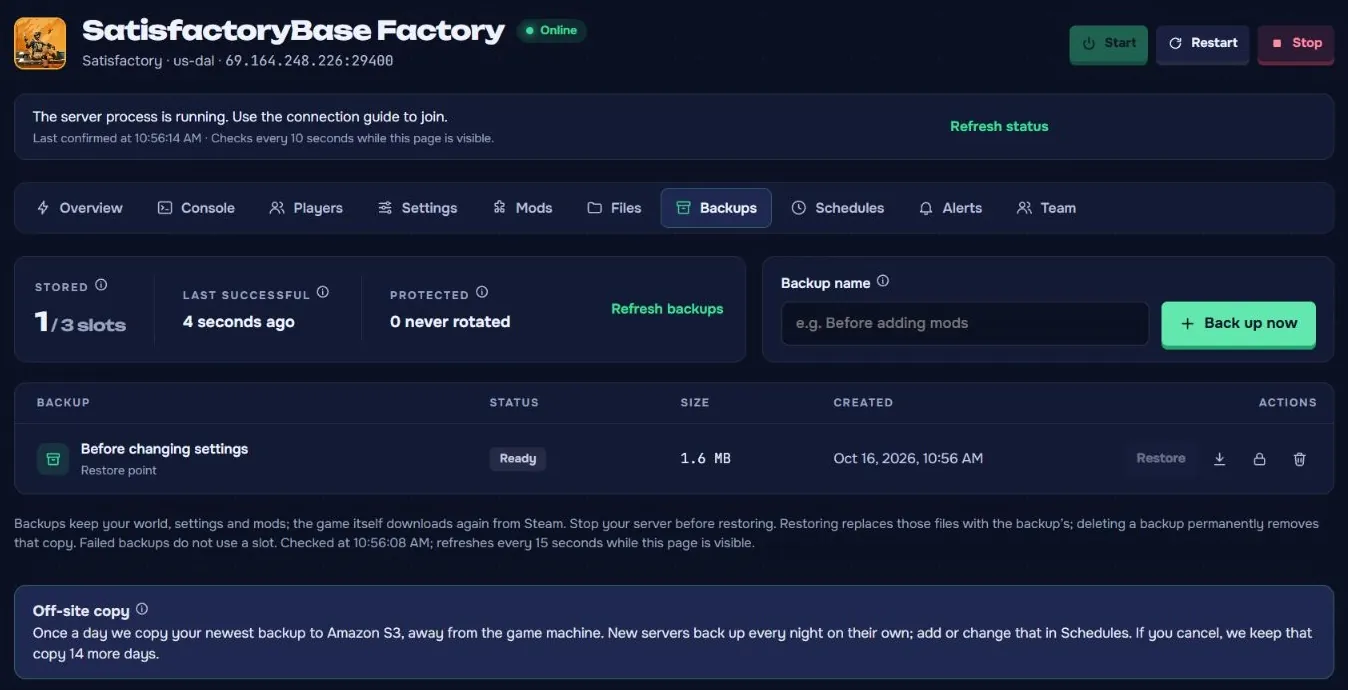
Restore: stop the server first and wait until it has stopped. Choose Restore on the backup you want and confirm. The affected files are replaced with the state of the backup. Start the server again and check your factory.
Extra copy: the download icon saves a finished backup to your computer. A fresh backup before larger changes to version, mods or settings makes going back easy.
Ready to play
Once the server is Online again and you can join, share the server address, port and join password with your group. The admin password stays with the people who run the server. For planning, invite each other to your SatisfactoryBase world.